
Buying Guides
How to Build a PC: A Practical Buying Guide for South African Buyers
Planning a custom PC? Learn how to choose compatible components, balance performance and budget, check power and cooling, and order confidently online in South Africa.
13 September 2026 · Innozanzi editorial team
Start with what you need the PC to do
Building a PC is easier when you begin with the workload rather than a list of parts. A computer for web browsing, schoolwork and office applications has different priorities from one intended for gaming, video editing, software development or 3D work.
Write down the applications you expect to use, the monitor resolution you have or plan to buy, and how long you want the system to remain useful. Also decide whether you need Wi-Fi, Bluetooth, multiple monitors, quiet operation or a compact case. These details influence the motherboard, graphics card, case and power supply you should choose.
For South African buyers, it is also sensible to set a complete project budget. Remember to account for the operating system, monitor, keyboard, mouse, Wi-Fi hardware if required, and any delivery costs shown during online checkout. A strong-looking component list is not useful if essential parts have been left out.
Understand the main components
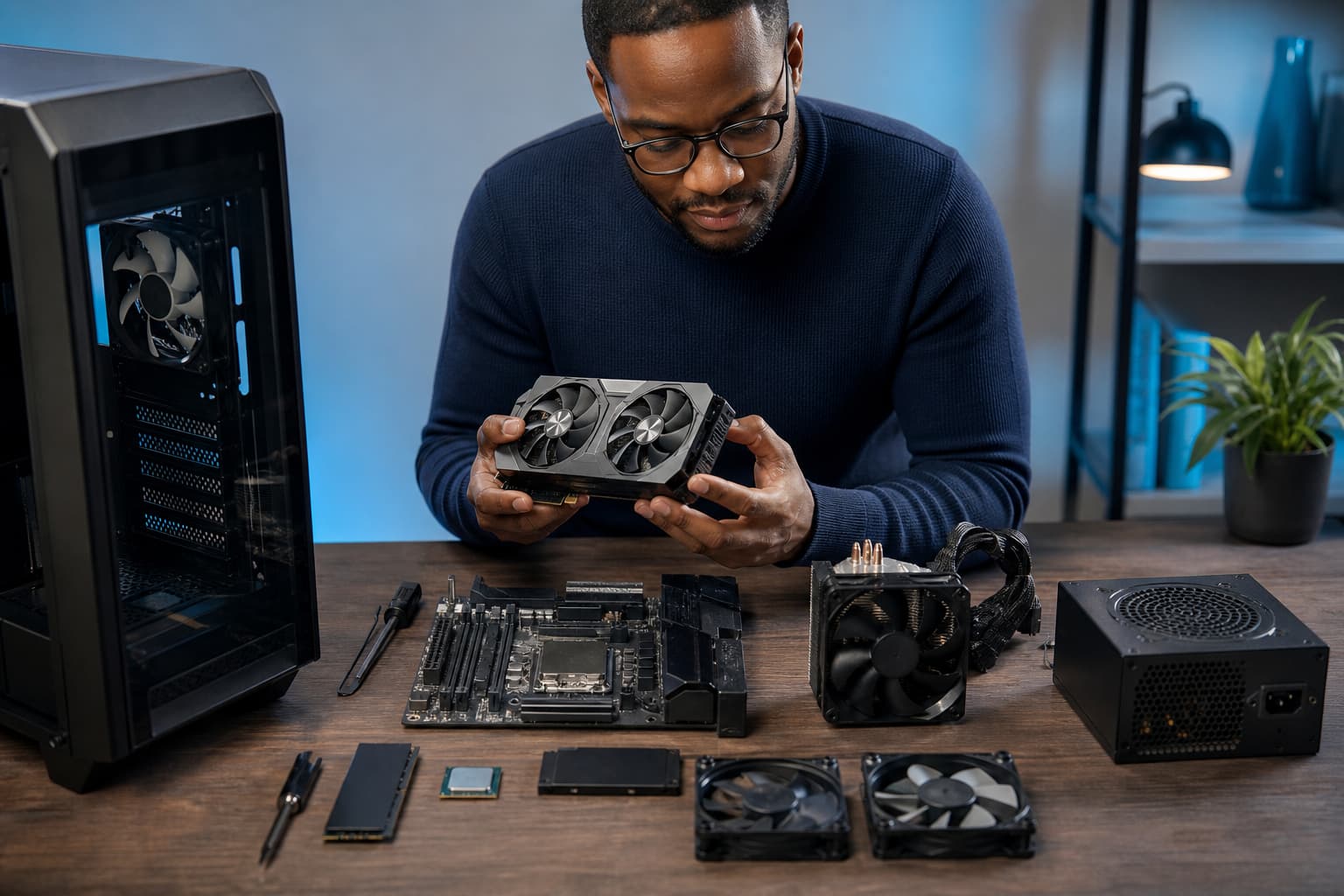
A custom PC is a group of components that must work together. Each part has a specific role:
- **Processor (CPU):** Handles general computing tasks and strongly affects application performance.
- **Motherboard:** Connects the processor, memory, storage, graphics card and other devices. It determines many compatibility and expansion options.
- **Memory (RAM):** Helps the system handle active applications and multitasking.
- **Graphics card (GPU):** Produces graphics for games, creative applications and some professional workloads. Some processors also include integrated graphics.
- **Storage:** An SSD is commonly used for the operating system, applications and files. Capacity matters as much as speed.
- **Power supply (PSU):** Converts mains electricity into the voltages used by the PC and must provide suitable wattage and connectors.
- **Case:** Houses the components and affects airflow, noise, size and upgrade room.
- **Cooling:** Keeps the processor and other components within their designed operating limits.
The best build is balanced. Spending heavily on one component while choosing a weak or incompatible supporting part can reduce the value of the entire system.
Check processor and motherboard compatibility first
The processor socket is one of the first compatibility checks. Intel advises that the processor socket must match the motherboard socket, and that motherboard BIOS support may also be required. Intel also provides compatibility information for processor generations and chipsets. ([intel.com](https://www.intel.com/content/www/us/en/support/articles/000005682/processors.html?utm_source=openai))
AMD compatibility also depends on the socket, chipset and sometimes the motherboard BIOS. AMD states that Socket AM5 boards support Ryzen 7000, 8000 and 9000 processors, while noting that a BIOS update may be required for some combinations involving 600-series boards. Older platforms have their own compatibility tables, so do not assume that every processor from the same brand will work in every motherboard. ([amd.com](https://www.amd.com/en/products/processors/chipsets/am5.html?utm_source=openai))
Before ordering, compare these details on the manufacturer’s product pages:
- CPU socket and supported processor generations
- Required BIOS version, if listed
- Memory type supported by the motherboard
- Number and type of storage slots
- Graphics card slot and other expansion slots
- Rear I/O ports and internal headers
- Form-factor support, such as ATX, Micro-ATX or Mini-ITX
If the build uses a processor without integrated graphics, a dedicated graphics card is required for display output. Also check which video outputs are available on the graphics card and monitor.
Choose RAM and storage for the workload
Memory capacity affects how comfortably a PC can run multiple programs at once. Consider your normal workload rather than choosing a number in isolation. Office work, browsing and basic study tasks have different needs from modern games, content creation, virtual machines or large development environments.
When selecting RAM, check the motherboard’s supported memory type and maximum capacity. Matching memory modules can also simplify installation and future upgrades. Do not buy memory solely because it has a higher advertised speed; confirm that the motherboard and processor support the relevant specification.
For storage, consider the total size of your operating system, applications, games, media and project files. It can be useful to separate frequently used applications from bulk storage, but the most important checks are interface compatibility, physical format and capacity. A drive that cannot fit the motherboard’s available slot or case mounting points is not a practical choice, regardless of its headline speed.
Select the graphics card carefully
For gaming and graphics-intensive work, the graphics card is often a major part of the system budget. Choose it according to the resolution, refresh rate and applications you actually intend to use. A card suitable for a high-resolution monitor may be unnecessary for a basic display, while a demanding workload may require more graphics memory and processing capability.
Check the card’s physical dimensions against the case. Manufacturer specifications can vary between models using the same GPU, particularly in length, thickness and cooling design. NVIDIA’s current comparison information shows that card dimensions, slot thickness, graphics power and required system power can differ between models, and that power recommendations depend on the wider system configuration. ([nvidia.com](https://www.nvidia.com/en-us/geforce/graphics-cards/compare/?utm_source=openai))
Also verify:
- Available PCIe slot clearance
- Card length and thickness
- Required power connectors
- The number and type of display outputs
- Whether the case provides enough airflow around the card
Avoid choosing a graphics card by model name alone. Always check the exact manufacturer model listed on the product page.
Do not treat the power supply as an afterthought
A PSU should be selected after estimating the requirements of the complete build. Check the processor, graphics card, drives, cooling devices and any planned upgrades. The PSU must provide enough wattage and the correct connectors, with suitable physical dimensions for the case.
Graphics card manufacturers publish power guidance, but the recommendation may assume a particular processor and system configuration. NVIDIA, for example, lists both graphics card power and required system power for its GeForce products, along with supplementary connector information. ([nvidia.com](https://www.nvidia.com/en-us/geforce/graphics-cards/compare/?utm_source=openai))
Do not rely only on a generic wattage calculator or the lowest possible estimate. Compare the exact GPU requirements with the PSU’s specifications, and confirm that the required cables are included. If you are unsure, check the manufacturer documentation before placing an order.
Plan cooling and case airflow
A case should be large enough for the motherboard, graphics card, cooling solution, storage devices and power supply. It should also provide a sensible path for cool air to enter and warm air to leave.
Check the maximum cooler height, graphics card length, radiator support if applicable, and the number of included or optional fans. A compact case can be attractive, but it may reduce upgrade flexibility and make cable management more difficult.
Cooling requirements depend on the selected processor and workload. A system that spends long periods rendering, compiling or gaming may need more robust cooling than a general-purpose office PC. Follow the processor and cooler manufacturer’s installation instructions, and make sure the cooler is compatible with the processor socket.
Check the operating system before buying
If you plan to use Windows 11, Microsoft lists minimum requirements including a compatible 64-bit processor, at least 4 GB of RAM, 64 GB of storage, UEFI firmware, Secure Boot capability and TPM 2.0. Microsoft also notes that some setup and feature requirements involve internet connectivity and a Microsoft account, depending on the edition and use case. ([learn.microsoft.com](https://learn.microsoft.com/en-us/windows/whats-new/windows-11-requirements?utm_source=openai))
These are minimum requirements, not a recommendation for every workload. Your applications and games may need substantially more memory, storage or graphics capability. Check the software publisher’s requirements as well as the operating system requirements.
Use an online checklist before checkout
Before ordering components through Innozanzi Shop, review the exact product listings and manufacturer specifications. Innozanzi Shop is an online store, so customers can compare products and place orders online rather than visiting a physical branch or walk-in location.
A useful final checklist is:
- CPU and motherboard socket match
- BIOS support has been checked where relevant
- RAM type and capacity are supported
- Storage fits the motherboard and case
- Graphics card fits physically and suits the intended display
- PSU has sufficient wattage and the correct connectors
- Cooler fits the socket and case
- Case supports the motherboard form factor
- Operating system requirements have been considered
- All essential components and peripherals are included
If a specification is unclear, verify it from the manufacturer’s documentation before buying. Product availability, pricing and delivery information should be confirmed on the current online listing and checkout details; they can change over time.
A practical way to build your first PC
For a first build, choose the platform before choosing individual accessories. Select the CPU and motherboard together, then add compatible memory, storage, cooling, graphics and power. This reduces the chance of discovering late in the process that the parts use different sockets, connectors or physical standards.
Innozanzi Shop supports online technology purchasing with national delivery within South Africa. Once your component list is complete, place the order online and retain the product documentation for installation and future upgrades.
A good PC build is not necessarily the most expensive one. It is the one that matches your real tasks, uses compatible parts and leaves room for sensible future changes. Compare carefully, verify the details of each exact model, and buy only when the complete system makes sense for your needs.